Viewing Property Alerts
The bell icon at the top-right corner of the screen displays the count of the new notifications. When users click the bell icon, the Notifications panel is displayed. The notifications are stacked from the newest to the oldest based on highest to the lowest priority. The alerts are grouped based on the following:
-
The notifications are grouped by event name and displayed
-
All the alerts triggered based on an alert are grouped together and displayed
-
The total number of alerts under each alert is displayed
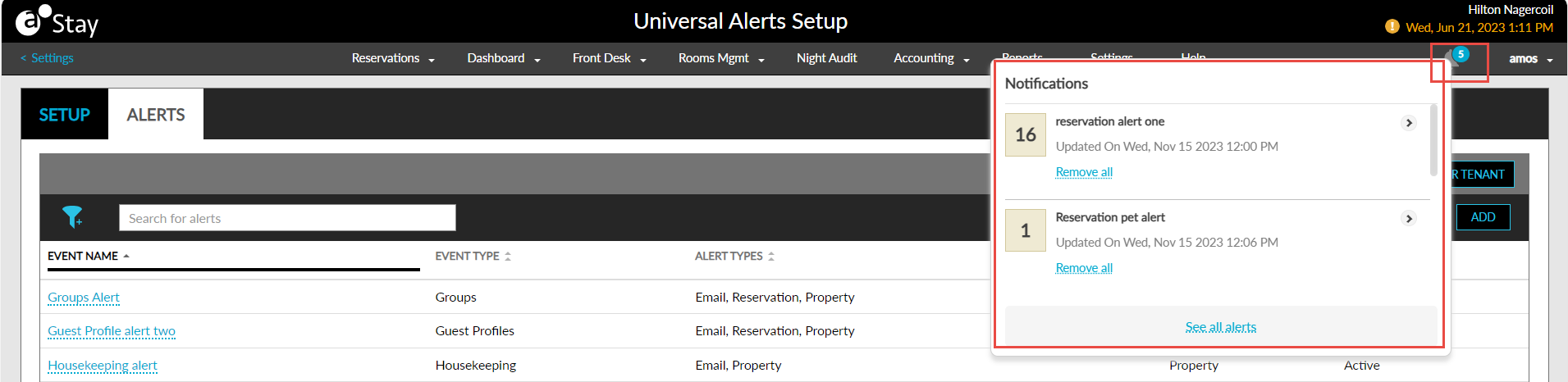
The number on the bell icon is based on the total number of groups by event name. When users click the bell icon, the count remains the same.
When the notification’s link (if added in the template) is clicked, the user is navigated to the respective screen. The See all alerts hyperlink at the end of the Notifications panel allows users to view all the notifications in an expanded view. When clicked, the Alerts screen appears that displays all the alerts. Users can perform the following operations on this screen:
-
Users can click the hyperlinks on the alerts if available, for navigation.
-
Alerts can be cleared.
-
Alerts can be filtered by alert names.
-
Users can search alerts using the alert names.
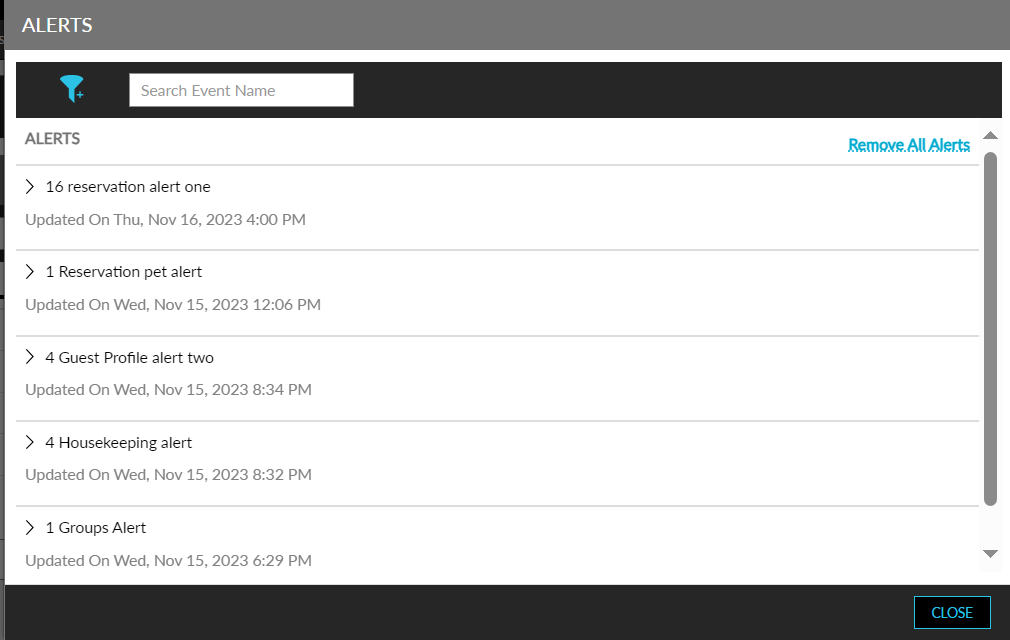
Users can also remove alerts using the remove option provided for each alert or using the Remove all alerts option. Based on the alert settings configured at the property, the alerts notifications are cleared for the Property Alerts.